
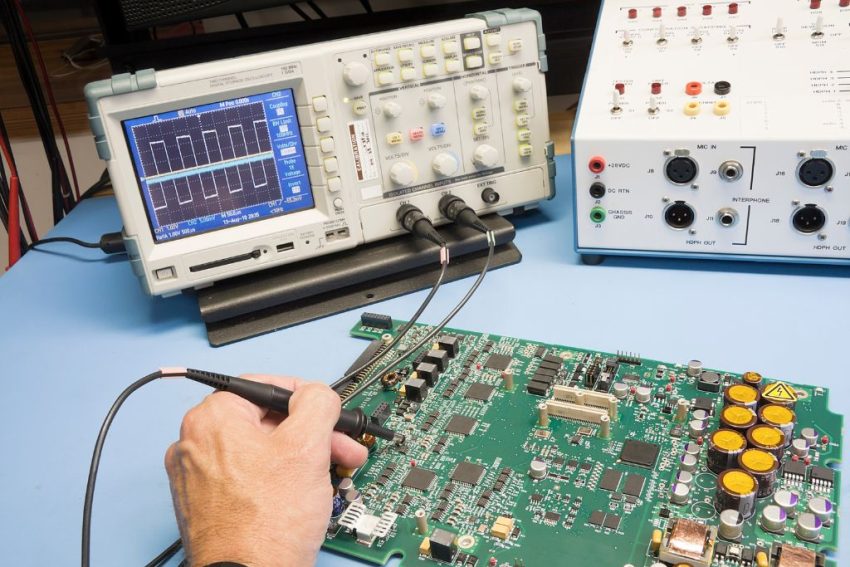
If your computer is not behaving the way you expect, it can be frustrating. Luckily, most problems can be easily solved with some basic troubleshooting steps. Before you start troubleshooting, you need to figure out what’s wrong and whether it’s a problem with the software or the hardware. This will help you narrow down the solution that’s right for your computer.
Computer education can provide professionals with a deep understanding of computer systems and devices, allowing them to identify and troubleshoot technical issues effectively. With a strong background in computer education, professionals can learn how to solve problems and become experts in their field.
Computer troubleshooting and computer education stress how important it is for professionals who want to move up in their careers to have the technical knowledge and problem-solving skills. A strong background in computer education can give professionals the skills they need to become good at troubleshooting computers and move up in their careers. More information can be found in this article. The Computer Education Every Professional Needs To Advance Their Career
Error Codes
There are a variety of error codes that can appear on your computer, and some are more serious than others. While many of them can be fixed by a computer novice, some will require professional help.
For example, if you receive the “blue screen of death” on your Windows-based computer, it usually means that the operating system is having trouble running. It could be due to a hardware issue, a driver error, or other issues.
This article will cover some of the most common errors you might see, as well as how to fix them. We’ll also discuss some of the more complicated problems, such as the 500 internal server error and the 502 gateway timeout error.
Hard Drive
There are a number of issues that can cause your computer to crash or run slowly. One of the most common is a hard drive that isn’t working properly.
A hard disk is a storage device that uses rotating platters and a read/write head to store information. These drives are complex and delicate devices, which means they can easily fail.
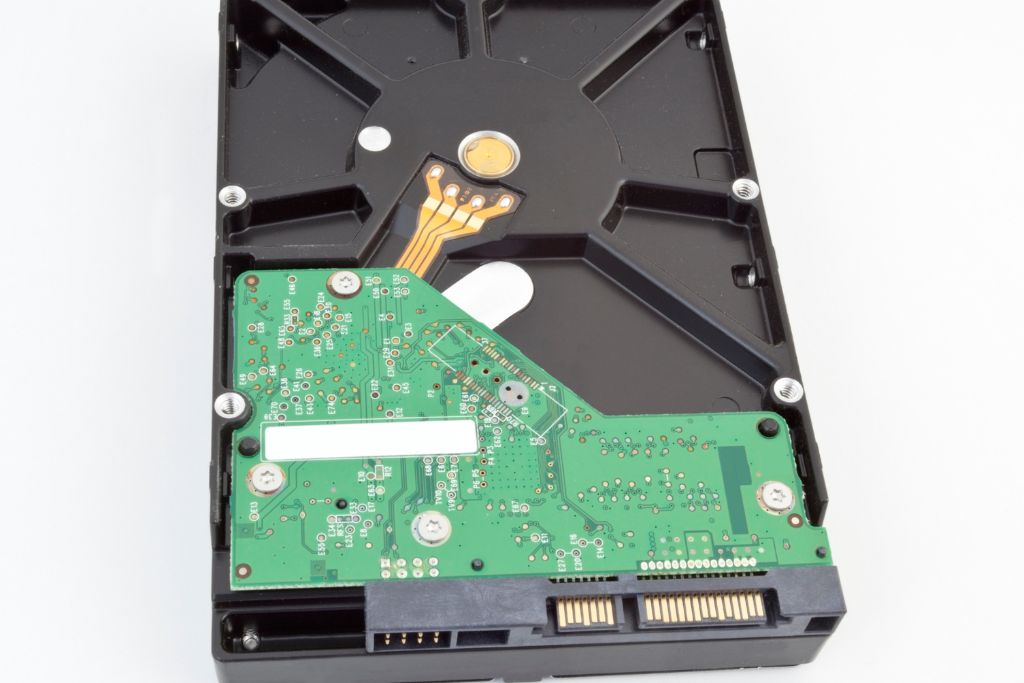
This can happen for many reasons, from sector failure to mechanical components that go bad or even adaptive drift, which causes performance to degrade.
If your hard drive isn’t working properly, there are a few things you can try to fix it. You can either replace the hard drive or do a head swap to regain access to your data.
Memory
Memory is the internal storage space that your computer uses to run programs, games, and files. You need enough memory to be able to access all the information on your hard drive.
When your computer’s memory is bad, it can cause a lot of problems. It can also make your system run slower over time.

Sometimes it’s a simple matter of replacing the RAM in your computer. To do that, simply remove the RAM and clean out the slot.
If that doesn’t solve the problem, then it could be a bad RAM module. To test that, install one of the modules on a different computer and see if the error goes away.
Keyboard
A keyboard is the primary input device for your computer, and if it’s not working correctly, you won’t be able to get any work done. That’s why it’s important to fix a keyboard problem as soon as possible before the situation gets worse.
First, check if the keyboard is connected properly to your computer. For wired keyboards, make sure you have the right USB port plugged into your computer; for wireless models, verify that your connection is secure and in place.

If it’s not, then it could be a software or power issue. If that’s the case, restart your PC to flush out all of its memory and reset everything.
Monitor
When troubleshooting computer problems, many people focus on hardware issues such as hard drive errors. However, monitor issues are also a common issue for many computer users.
The first thing to do is check your computer monitor’s power indicator lights. If there are no lights, the monitor is not receiving power from the wall or it has a defective power cable.
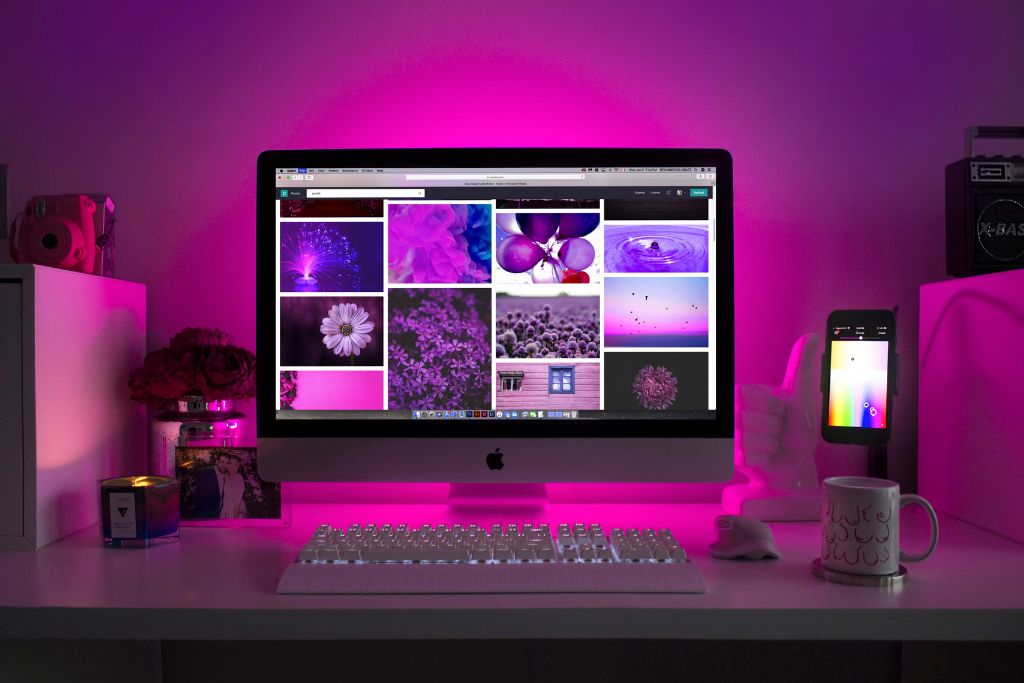
To fix this, make sure the computer’s extension cord is plugged into a working wall outlet and the monitor’s power cable is correctly plugged into the back of your monitor. Restart your computer, and then try turning on the monitor again. If the problem keeps happening, it’s probably because your monitor is broken and needs to be replaced.